
While using oxat on some modern browsers, you will be redirected to this page in the event that the Adobe Flash Player plug-in fails to load. To fix this issue, you must allow the Adobe Flash Player plug-in to be always allowed to run on oxat.pl. See below for specific information for your browser.
If after following the instructions below you are unable still unable to get Flash to work, please ask a question in the General Support section of the forum. Alternatively try out the in-development HTML5 version of the chat by adding ?new to the end of a chat's URL, or ?new2, which also has the in-development redesign of the group pages as well. For example: https://oxat.pl/Help?new or https://oxat.pl/Chat?new2.
Google Chrome
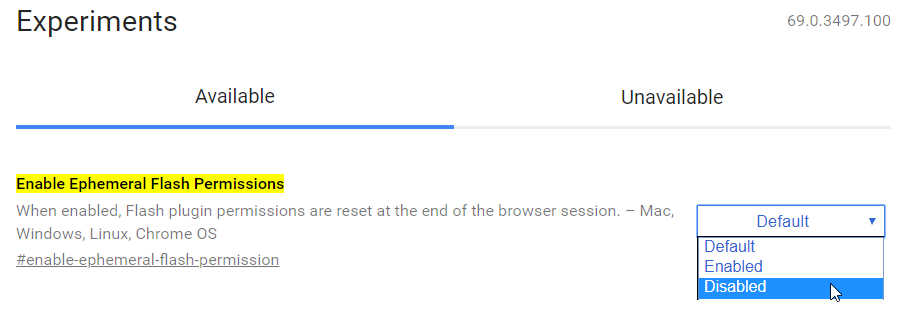
With Google Chrome's latest update, you are now required to manually allow Flash to run every time you start your browser in order to access a chat. Here's a temporary solution to this problem:
- Type "chrome://flags" into your URL bar to bring Chrome's Experiments panel.
- Search for "Enable Ephemeral Flash Permissions".
- Mark it as "Disabled".
- Restart your browser.
Edge
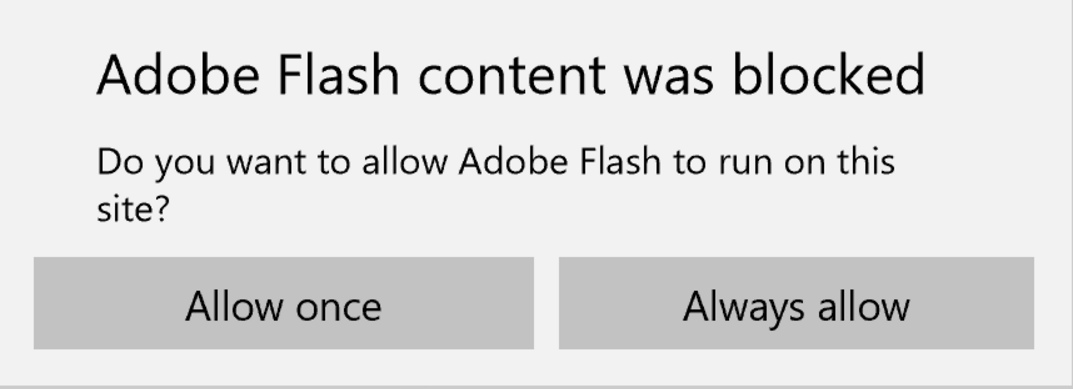
- Go to any chat. For example: https://oxat.pl/Chat.
- Click the "Select for Adobe Flash" text.
- Click the "Always allow" button.
If you do not see the "Select for Flash" text, then you may need to follow the steps below:
- Click the "..." button to access the Edge menu.
- Select the Settings menu item.
- Scroll down to the Advanced Settings section and click the View advanced settings button.
- Locate the Use Adobe Flash Player section and toggle the switch on to enable Adobe Flash Player.
- Refresh your web page or open a new browser tab.
Mozilla Firefox
Unlike Google Chrome and Edge, Mozilla Firefox does not have Flash built-in, meaning that it requires you to manually download and install Flash in order to run it within the browser. To do so, navigate to https://get.adobe.com/flashplayer and click the "Install now" button.
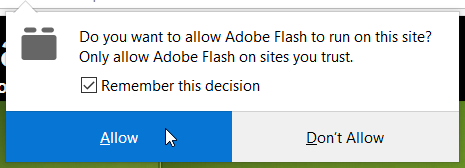
- With Flash installed, go to any chat. For example: https://oxat.pl/Chat.
- Click in the "Run Adobe Flash" text.
- Mark the "Remember this decision" checkbox and click the "Allow" button.
If you do not see the "Run Adobe Flash" text, then you may need to follow the steps below:
- Click the "..." button to access the Firefox menu.
- Select the Add-ons menu item then select Plugins.
- In the list of Add-ons, look for Shockwave Flash (another name for Flash Player) and check the status that appears to the right of the plug-in name.
- Select Always Activate, close the dialog box.
Opera

Like Mozilla Firefox, Opera does not have Flash built-in, meaning that it requires you to manually download and install Flash in order to run it within the browser. To do so, navigate to https://get.adobe.com/flashplayer and click the "Install now" button.
- With Flash installed, go to any chat. For example: https://oxat.pl/Chat.
- Click in the "Click to enable Adobe Flash Player" text.
- Click the "Allow" button.
The steps above may not be enough for some cases. If you're still having trouble after following these steps and restarting your browser, you may need to follow the steps below:
- Click on "Menu" at the top left and then click on "Settings".
- Select the "Websites" tab.
- Look for "Flash" and then click on "Manage exceptions".
- Add oxat as an exception by typing "oxat.pl" into the text boxes.
- Select "Allow" and press enter.
Safari
For Safari 10.0 and above
- Open Safari, and choose Safari > Preferences.
- Click the Security tab. Ensure that Enable JavaScript and Allow Plug-ins are selected. Click Plug-in Settings.
- Select Adobe Flash Player.
- For each website appearing in Currently Open Websites, choose On in the menu on the right.
For Mac OS X 10.8 and above
- Open Safari, and choose Safari > Preferences.
- Click the Security tab. Ensure that Enable JavaScript and Allow Plug-ins are selected. Click Manage Website Settings.
- Select Adobe Flash Player.
- From the When visiting other websites menu, choose Allow.
For Mac OS X 10.6 and 10.7
- Open Safari, and choose Safari > Preferences.
- In the Security tab, make sure that Allow Java and Allow All Other Plug-ins are enabled.
- Close the Preferences window.